Scaniam meeting booking lets an attendee book a meeting with someone on your team from your event survey, at a time that person is really free. You add the people who take meetings with their own hours and time zones, and Scaniam offers only open times, removes a time once it is booked and gives the attendee a meeting card with Add to calendar. Booking with one person works on every plan; several people per question, letting the attendee pick the person, meeting tables and Reassign are on the Premium plan.
What Scaniam meeting booking is and when to use it
Scaniam meeting booking turns a survey question into a booking calendar for your team. Scaniam is gamified event lead capture and booth CRM for event marketers. Use it when you want attendees to leave your booth, your registration page or a webinar sign-up with a meeting already booked: a demo with a solutions engineer, a dinner slot with an executive, or a follow-up call after the event.
You add a Meeting question to the event survey and tick the team members who take meetings. Each team member has their own availability hours, days off and time zone. Scaniam works out which times are free for each person, shows the attendee only those times, and books the time when the attendee submits. A booked time disappears for everyone else.
The attendee gets a meeting card with the date, time, place and host, and Add to calendar. Your team sees every meeting on the event page under Meetings. Reps who use the Sales Station also see their own meetings there under My meetings.
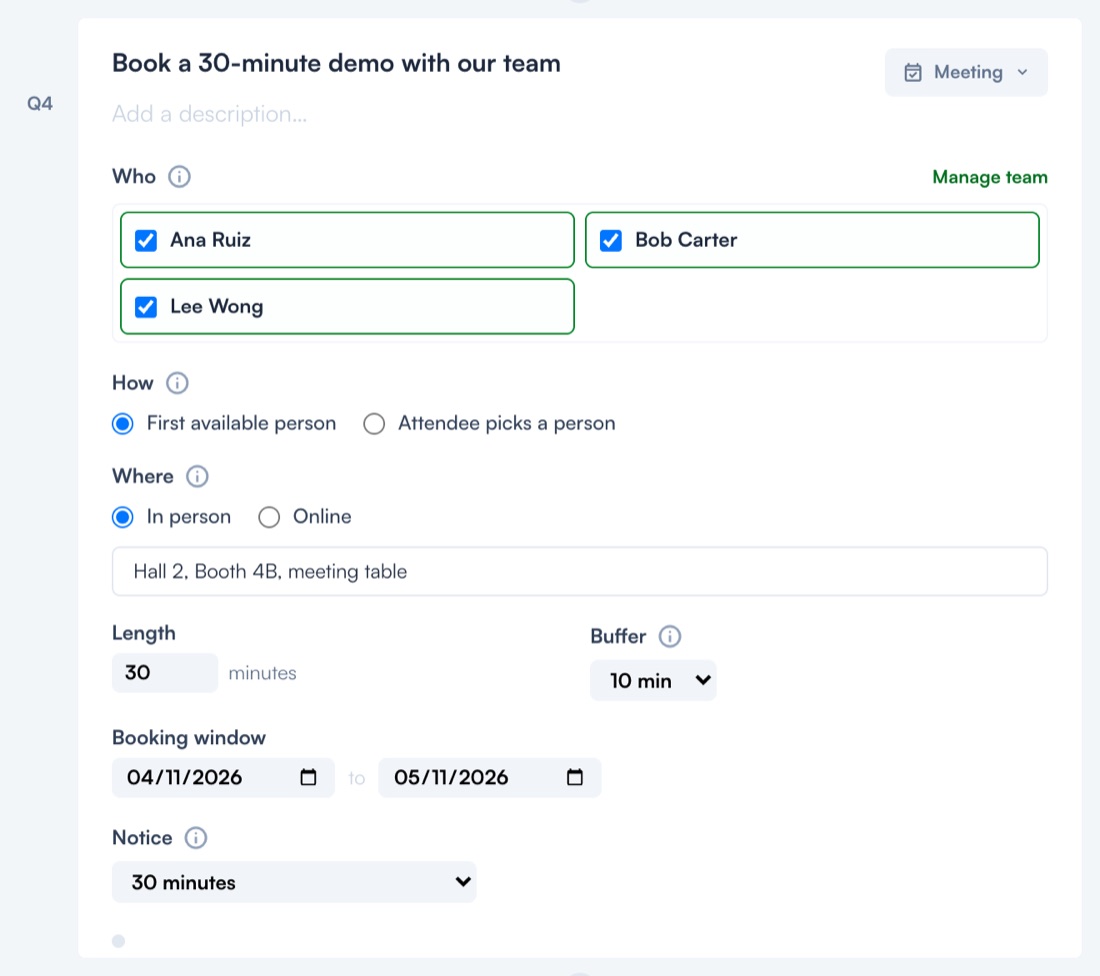
The Meeting question in the survey builder (example workspace, October 2026).
The rules
Scaniam meeting booking follows these rules.
| Topic | Rule |
|---|---|
| Who takes meetings | The team members you tick under Who on the Meeting question. Team members are added in the event's Team window. |
| Hours | A team member is offered only inside their Availability Hours, in their own time zone, and never on their Days Off. Hours cannot run past midnight. |
| How | First available person gives each booking to whoever is free, spreading meetings evenly. Attendee picks a person lets the attendee choose who to meet first, then shows that person's times. |
| Where | In person shows times in the venue time zone and uses the location you type on the question. Online shows times in the attendee's own time zone and uses each team member's Online Meeting Link. |
| Length | Minutes per meeting, at least 5, in steps of 5. |
| Buffer | Free time kept after each meeting before that person's next one: None, 5 min, 10 min, 15 min or 30 min. |
| Booking window | The first and last day meetings can take place. At most 62 days. |
| Notice | How far ahead a meeting must be booked: None (can book right up to start), 15 minutes, 30 minutes, 1 hour, 2 hours, 4 hours or 24 hours. |
| Start times | Times start every 15 minutes, or every meeting length for meetings shorter than 15 minutes, on the venue clock. A whole meeting must fit inside the person's hours. |
| One booking per answer | Each attendee books one time per Meeting question. |
| Booked times | A booked time and the buffer after it are not offered again for that person. |
| Meeting tables | Optional. With a number set, an in-person time can be booked only while a table is free. Online meetings do not use tables. |
| Required | A required Meeting question asks for a time whenever times are offered. When no time can be offered, the attendee can submit without one. |
| Test runs | A response from Test Survey or Preview books no meeting. |
| Scaniam sends no email or invite to the attendee or to your team. |
New Meeting questions
A new Scaniam Meeting question starts ready to use. It starts with:
- First available person and In person.
- Length 30 minutes, Buffer 10 minutes and Notice 30 minutes.
- A Booking window of your event's start and end dates (today, if the event has no dates).
- Under Who, every team member who has hours ticked. On a plan without team scheduling, only the first of them is ticked.
If the event has no team yet, Who shows "Add who takes meetings" with Open Team and Add myself. Add myself adds you as a meetings-only team member with hours of 9:00 to 17:00 every day of the event, and ticks you on the question.
The card warns "Attendees see no meeting times until you add who takes meetings." when nobody is ticked, and "Attendees see no meeting times until a ticked person has hours." when the ticked people have no hours. If the event has no time zone, the card says "Event time zone is not set. In-person meeting times align to the event time zone." and lets you pick one.
Your team: hours, time zones and tables
Scaniam keeps one team list per event. The same list holds Sales Station reps, Host Station staff and the people who take meetings. Open it from the event page with Links & QR, then Team, or from a Meeting question with Manage team.
| Field | What it does |
|---|---|
| Venue time zone | The time zone of the event venue. In-person meeting times are shown in it. |
| Meeting tables / rooms | How many in-person meetings can happen at once. Leave it blank for no limit. |
| Meetings only | For someone who takes meetings but never signs in to a booth station, such as an executive. They need no PIN. |
| Attendee-Facing Title (optional) | Shown with the person's first name when attendees pick who to meet. |
| Time Zone (defaults to venue) | The person's own time zone. Their hours are read in it. |
| Online Meeting Link (https only) | A Zoom, Teams or Meet link used for that person's online meetings. |
| Availability Hours | Date ranges, days of the week and times when the person can meet. Every day, 9:00 - 17:00 fills in the event dates. Up to 20 blocks per person. |
| Days Off | Dates the person takes no meetings, up to 60. |
When a person's time zone differs from the venue, each hours block shows the same hours in venue time underneath, for example "= 15:00 - 23:00 Barcelona".
What attendees see
On the Meeting question, the attendee sees the meeting length, then a row of days and a grid of start times. Only free times are shown.
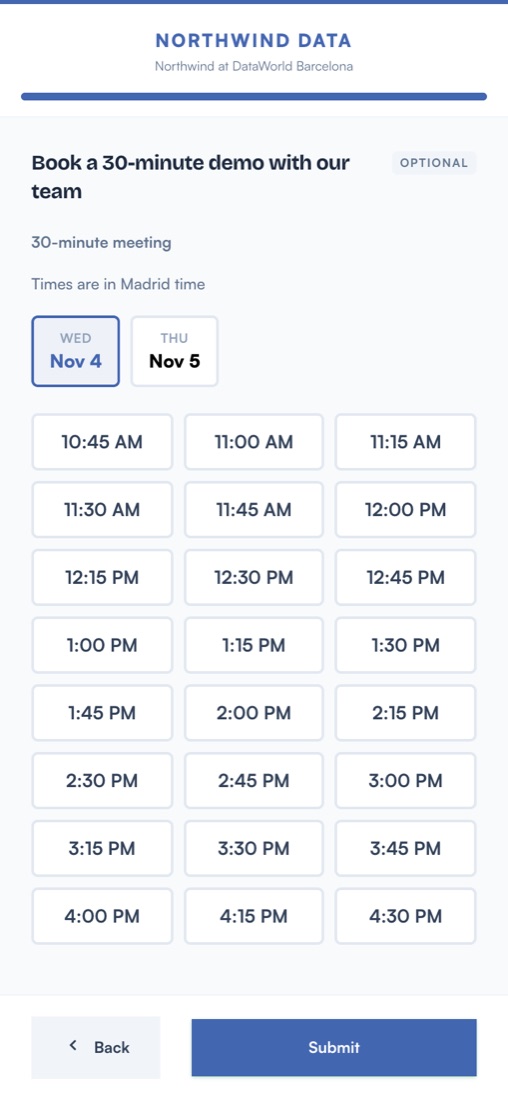
An attendee picking a time on their phone (example event, October 2026).
- In person: the question says "Times are in [city] time", using the venue. If the phone is in another time zone, the chosen time also shows in the attendee's own time.
- Online: the question says "Times are in your time zone", with Change to pick another zone.
- Attendee picks a person: the attendee first sees "Choose who to meet with:" with the first name and title of each person who has a free time, then that person's times. Changing the person clears the chosen time.
- No times: if nothing is free, the question says "No meeting times are available to book. You can continue without one."
After the attendee submits, the success screen shows a Meeting booked card with the date and time, the length, "Host:" and the host's name, and the location (in person) or the join link (online). The card comes back when the attendee reopens the survey on the same phone. A booking made on your registration page shows the same card.
Add to calendar
Every Scaniam meeting card has Add to calendar with three choices:
- Add to calendar (.ics), a calendar file for Apple Calendar, Outlook and most calendar apps.
- Google Calendar.
- Outlook, with Outlook (Work / Office 365) and Outlook (Personal / Live).
The calendar entry is titled "Meeting with [host] - [your workspace name]" and carries the host, the location or join link and the attendee's gift code. The calendar file always holds the meeting's current time and host when it is opened. Google Calendar and Outlook entries are copies made at the moment the attendee adds them.
Inside the WhatsApp, LinkedIn, Instagram or Facebook app browsers, the card says "Tip: open this page in Safari or Chrome to save the file."
Running meetings during the event
On the event page, the Meetings card lists every booking. It shows once the event has responses and the survey has a Meeting question.
- Meetings are grouped by person, in time order, in venue time, with Online or the location on each row.
- Needs a time lists bookings with no host at the moment, with the reason Time was taken or Host removed.
- Reassign moves a meeting to another person on the same question who is free at that time. The time stays the same. A meeting that is already over cannot be reassigned. Reassign also gives a Needs a time booking a host without the attendee doing anything.
- Meetings Booked on the event's stat row counts the booked meetings.
On the Sales Station, a rep taps Meetings and sees All, Unclaimed and My meetings. My meetings lists the meetings where that rep is the host. Meetings booked with team scheduling already have a host, so they have no Claim button.
On the Host Station, staff fill the Meeting question for the attendee like any other question. The confirmation shows the meeting card.
The event CSV export has the meeting time in venue time, with the time zone in the column name, and a Meeting host column at the end. While a meeting needs a time, the time column says "Needs a time" and Meeting host is blank.
What happens if...
| If | Then |
|---|---|
| Two attendees pick the same last free time at the same moment | The first one gets the meeting. The second one's answers are saved, and their card says "That time was just taken. Pick another:" with fresh times. Picking a time saves it at once. |
| You remove a team member who has meetings | Before removing, the Team window says how many meetings they have. Their meetings move to Needs a time with Host removed. The attendee's card asks them to pick another time, and their calendar file link says "This meeting is no longer booked." Use Reassign to give a meeting to someone else. |
| You change someone's hours after people booked | Existing meetings stay as they are. New bookings follow the new hours. |
| An attendee edits their answers and picks another time | Scaniam frees the old time and books the new one. If the new time is no longer free, the old time is still freed and the card says "That time was just taken. Pick another:". |
| An attendee clears their meeting answer, or you delete their response | The time is freed for others. |
| No team member has a free time left | The question says "No meeting times are available to book. You can continue without one." The attendee can submit without a meeting, even on a required question. |
| The times cannot load (no signal) | The question says "Couldn't load times. Try again, or continue without a meeting." with Try again. |
| All meeting tables are taken at a time | That time is not offered for in-person meetings, even when a team member is free. |
| You delete a Meeting question, or change it to another type | If people booked through it, Scaniam first asks, for example "6 people booked a meeting with this question." with Delete and Keep it. On Delete, those meetings are cancelled and the times freed as soon as the survey saves. Undo can bring the question back, but not meetings already cancelled. Scaniam does not tell the attendees, and their calendar file link says "This meeting is no longer booked." The responses stay. |
| You test the survey with Test Survey or Preview | No meeting is booked and no card is shown. |
| Your workspace moves to a plan without team scheduling | Meeting questions you already set up keep working with all their people. In the builder you can keep one person or upgrade. Reassign is no longer available, and a meeting table limit can only be lowered or cleared. |
| Your survey has a Meeting question from before team scheduling | It shows as Shared time slots (older setup) and keeps working. Switch to team scheduling changes it; this cannot be undone, and existing bookings stay as they are. |
What meeting booking is not
- It is not a calendar sync. Scaniam does not read or write your team's Google or Outlook calendars, so add busy times as Days Off or adjust the hours.
- It is not an email tool. Scaniam sends no confirmation, reminder or invite. The attendee adds the meeting to their calendar from the card.
- It is not a video-call tool. Online meetings use the link you give each team member.
How to set up meeting booking
- Open your event from Events.
- Click Links & QR, then Team. Set the Venue time zone if it is not set.
- Add each person who takes meetings, or click the pencil next to an existing one. Turn on Meetings only for someone who never uses a booth station. Set their Time Zone if they are not at the venue.
- Under Availability Hours, click Every day, 9:00 - 17:00, then change the dates, days and times. Add Days Off and an Online Meeting Link if needed. Click Save Member.
- Optional: enter Meeting tables / rooms.
- Open the survey: Event Settings, then Edit Survey. Click Add question and pick Meeting.
- Type the question, for example "Book a 30-minute demo with our team". Check the people ticked under Who.
- Choose How and Where. For in person, type the location, for example "Hall 2, Booth 4B".
- Check Length, Buffer, Booking window and Notice.
- Click Preview to see the question as attendees will.
Before the event, open your survey on a phone, book a meeting and tap Add to calendar to check the time in your own calendar. Then delete that response from the event page so the time is free again.
Which plans include meeting booking
Meeting questions with one person taking the meetings, and Add to calendar, are on every Scaniam plan, including Free. Several people on one question, Attendee picks a person, Meeting tables / rooms and Reassign are on the Premium plan. See pricing.
Common questions
Can attendees book a meeting with my sales team from a Scaniam survey?
Yes. Add a Meeting question to your survey and tick the team members who take meetings. Each attendee sees only the times when one of those people is free, picks a time and gets a meeting card with the date, time, place and host, plus Add to calendar.
Does Scaniam block a time once it is booked?
Yes. A booked time, plus the buffer you set after each meeting, is no longer offered for that person. If two attendees pick the same last free time at the same moment, the second one is asked to pick another time, and their answers are saved either way.
Does Scaniam send a calendar invite?
No email is sent. The attendee's meeting card has Add to calendar with a calendar file, Google Calendar and Outlook. Your team sees the meeting on the event page and, for reps who use the Sales Station, under My meetings.
Can team members in other time zones take meetings?
Yes. Each team member has their own time zone and their own hours. Attendees see in-person meeting times in the venue time zone, and online meeting times in their own time zone.
Which Scaniam plans include meeting booking?
Every plan can add Meeting questions with one person taking the meetings, and every attendee gets Add to calendar. Several people on one question, Attendee picks a person, meeting tables and Reassign are on the Premium plan.